
How to Find Trending Topics on Twitter (X): Complete Guide [2026]

![How to Find Trending Topics on Twitter (X): Complete Guide [2026]](/_next/image?url=%2Fblog%2Fcover-trending-topics-on-x.png&w=3840&q=75)
Want to know what the world is talking about right now? Learning how to find trending topics on Twitter can help you stay informed, join viral conversations, and grow your audience. Whether you're a social media manager looking to boost engagement, a marketer hunting for content ideas, or simply curious about what's happening globally, Twitter (now called X) makes it easy to discover what's trending.
In this comprehensive guide, I'll walk you through every method to find Twitter trends, from the native app on desktop and mobile to powerful third-party tools. You'll also learn how the trending algorithm works, how to customize trends for your location, and strategies to leverage trending topics for business growth.
Let's dive in.
What Are Trending Topics on Twitter/X?
Trending topics on Twitter are the most popular subjects, hashtags, and keywords being discussed on the platform at any given moment. Think of them as a real-time pulse of what people care about, from breaking news and sports events to viral memes and pop culture moments.
Twitter displays trends in several ways:
- Hashtags : Like #WorldCup or #Oscars
- Keywords and phrases : Such as "iPhone 16" or "Taylor Swift"
- General topics : Broader subjects like "Climate Change" or "AI"
You'll find these trends in the "What's Happening" section on your homepage (desktop) or the Explore tab on the mobile app.
Twitter personalizes your trends. The trending topics you see are tailored based on:
- Your location (city, country, or worldwide)
- Accounts you follow
- Topics you engage with
- Your past interactions on the platform
This means your friend in London might see completely different trends than you see in New York; even at the same time.
How Twitter's Trending Algorithm Works
Understanding how Twitter determines trending topics helps you make sense of what appears in your feed and how to potentially get your content seen by more people.
Twitter's algorithm identifies trends based on several key factors:
Volume and Velocity
The algorithm looks at both how many people are tweeting about a topic and how quickly that conversation is growing. A sudden spike in mentions signals something newsworthy.
Recency
Twitter prioritizes fresh, emerging topics over subjects that have been popular for a while. The goal is to surface what's happening right now, not yesterday's news.
Location
Trends can be localized to specific cities, regions, or countries. A hashtag might trend in Mumbai but not in Chicago. You can adjust your settings to see local or worldwide trends.
Personalization
Your "For You" trends are influenced by the accounts you follow and the content you engage with. If you interact with tech content frequently, you're more likely to see tech-related trends.
Account Credibility
Twitter considers factors like account verification, follower-to-following ratio, and consistent activity. Engagement from Premium (X Blue) subscribers carries more algorithmic weight.
Spam and Bot Filtering
Twitter actively works to prevent coordinated campaigns and bot activity from artificially inflating trends. However, manipulation still occasionally occurs.
Pro tip: Tweets about trending topics often receive a visibility boost in the algorithm, making trends a strategic opportunity for content creators.
How to Find Trending Topics on Twitter
Now let's get to the practical stuff. Here's exactly how to find what's trending on Twitter, whether you're on desktop or mobile.
1. Finding Trends
If you're browsing Twitter on your computer, finding trends is straightforward:
- Log in to your account at x.com (or twitter.com)
- Click "Explore" or magnifying glass icon in the left menus(for desktops) or at the bottom of the screen (for iPhone/Android device)
- Select the "Trending" tab at the top of the page
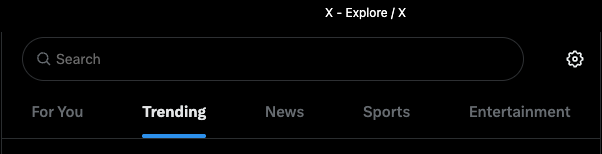 This displays the full list of current trending topics and hashtags in your area. Click on any trend to see all the tweets and conversations around it.
Quick tip: When you're logged in on desktop, some trends appear directly on your homepage sidebar, so you don't even need to navigate to Explore.
The mobile app also shows you a "For You" tab with personalized trending content based on your activity.
2. Customizing Your Trend Location
By default, Twitter shows you trends based on your current location. But you can change this to see what's trending anywhere in the world:
- Go to the Explore page
- Click the settings
- Disable show content in this location
- Select "Explore location"
- Choose a specific city or country for which you want to explore tweets
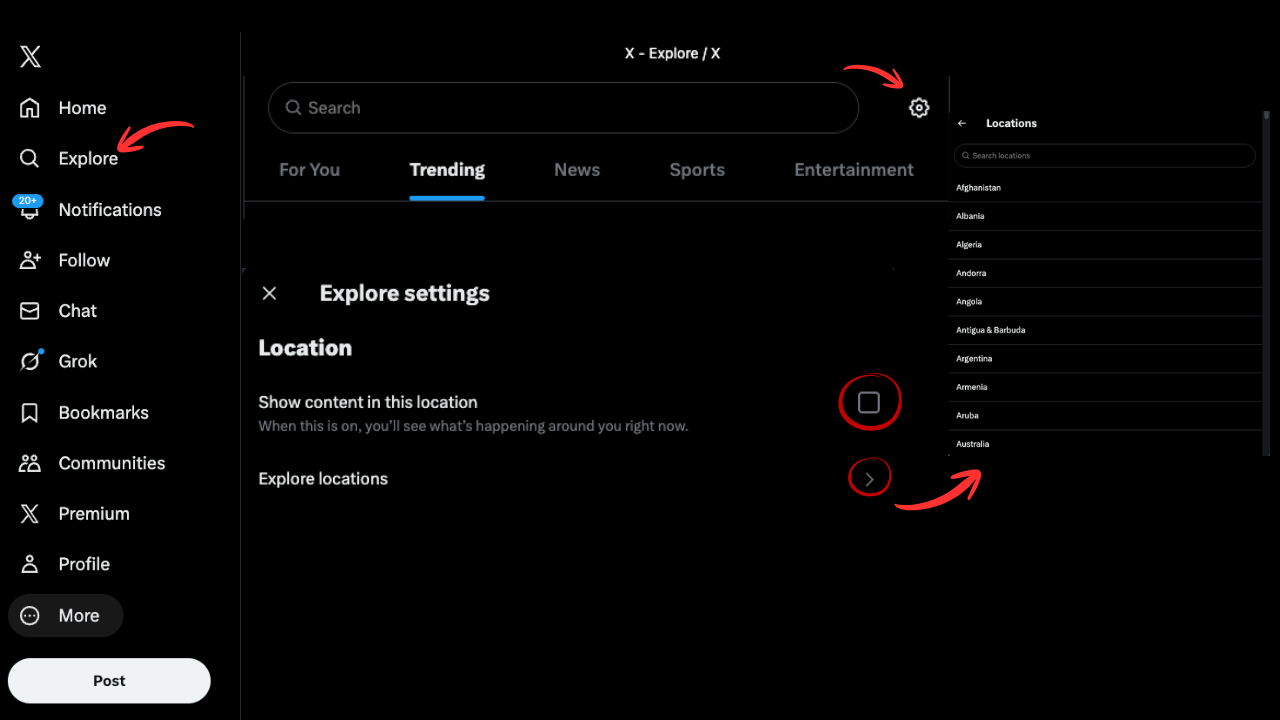
This is especially useful if you're targeting an international audience or want to see what's trending in specific markets.
Third-Party Tools to Track Twitter Trends
While Twitter's native trending feature is useful, third-party tools offer additional capabilities; especially for marketers, researchers, and power users who need deeper insights.
When to Use Third-Party Tools
- No account access : Tools which let you view trends without logging in
- Historical research : See what trended last week or last month
- Competitor analysis : Track industry-specific conversations
- Multi-location monitoring : View trends across multiple regions simultaneously
- Advanced analytics : Measure trend velocity, sentiment, and engagement
For most casual users, Twitter's built-in trends work perfectly. But if you're running a brand account or doing social media marketing, these tools can be invaluable.
Conclusion
Finding trending topics on Twitter is straightforward once you know where to look. Whether you use the Explore tab on desktop, the magnifying glass icon on mobile, or third-party tools for deeper analysis, staying current with Twitter trends gives you a real-time window into what the world is discussing.
Ready to see what's trending? Open Twitter and explore. Your next viral tweet might be just one trending hashtag away.